WorkBuddy
Connect WorkBuddy to the LMU AI relay via a Custom OpenAI-compatible model — set the Base URL and sk- key to call Claude, GPT, and Chinese models.
WorkBuddy is Tencent's AI coding assistant (same family as CodeBuddy). It supports connecting to any OpenAI-compatible API through a Custom (OpenAI-compatible) model, so you can point it at the LMU AI relay and use a single sk- key to call Claude, GPT, and Chinese models.
Before you start
-
An LMU AI API key that starts with
sk-: register and generate one in the LMU AI console. -
Note the LMU AI OpenAI-compatible address (Base URL), with
/v1:https://api.lmuai.com/v1 -
Make sure your key's group has the upstream for the model you want to use (available models depend on the group).
Do not use a Claude Max group key
The Claude Max group supports only the Anthropic protocol and cannot be filled into an OpenAI-protocol address such as https://api.lmuai.com/v1, so it will not work with WorkBuddy's custom model. Use a pay-as-you-go or standard subscription group key instead.
Method 1: Add a custom model in the UI (recommended)
-
Open WorkBuddy and go to the model settings: either via Settings → Model, or open the model picker in the chat box, scroll to the bottom, and choose Configure custom models.
-
Click Add Model and set the provider / type to Custom.
-
Fill in these three fields:
Field Value Endpoint / Base URL https://api.lmuai.com/v1API Key the sk-key generated in the consoleModel Name an LMU AI model ID, e.g. gpt-5.6-solorclaude-sonnet-5 -
(Optional) Toggle Tool Call, Image input, etc. according to the model's capabilities.
-
Save, return to the model picker, select the model you just added, and start chatting.
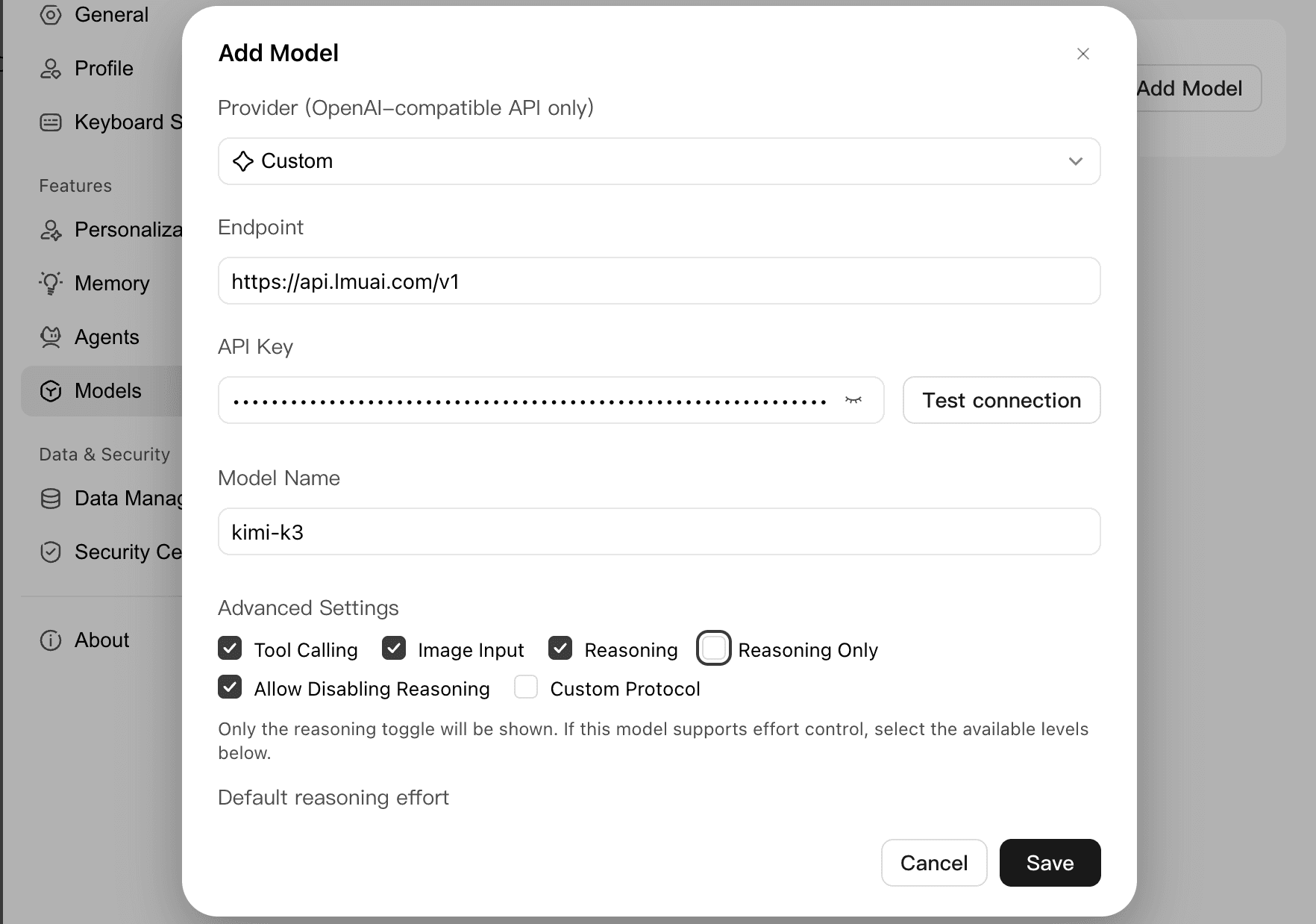
Do not write /chat/completions into the endpoint twice
WorkBuddy automatically appends /chat/completions to the endpoint. So stop the endpoint at https://api.lmuai.com/v1 and do not add /chat/completions — otherwise it becomes …/v1/chat/completions/chat/completions and returns a 404.
Method 2: Edit models.json (precise, version-controllable)
WorkBuddy / CodeBuddy also stores custom models in a config file, which suits bulk or team-wide setup.
The config file lives in a .codebuddy folder in your home directory (some versions use .workbuddy — use whichever actually exists on your machine):
- Windows (user level):
C:\Users\<your-username>\.codebuddy\models.json - macOS / Linux (user level):
~/.codebuddy/models.json - Project level:
<your-project-dir>\.codebuddy\models.json
On first use, install, sign in, and open any project once so the config directory is created. Example (replace apiKey with your own sk- key):
{
  "models": [
    {
      "id": "gpt-5.6-sol",
      "name": "LMU AI GPT-5.6 Sol",
      "vendor": "LMU AI",
      "url": "https://api.lmuai.com/v1/chat/completions",
      "apiKey": "sk-your-key",
      "maxInputTokens": 128000,
      "maxOutputTokens": 8192,
      "supportsToolCall": true,
      "supportsImages": false
    },
    {
      "id": "claude-sonnet-5",
      "name": "LMU AI Claude Sonnet 5",
      "vendor": "LMU AI",
      "url": "https://api.lmuai.com/v1/chat/completions",
      "apiKey": "sk-your-key",
      "maxInputTokens": 128000,
      "maxOutputTokens": 8192,
      "supportsToolCall": true,
      "supportsImages": false
    }
  ],
  "availableModels": ["gpt-5.6-sol", "claude-sonnet-5"]
}
Notes:
- Here
urlmust be the full pathhttps://api.lmuai.com/v1/chat/completions(unlike Method 1, it does include/chat/completions). maxInputTokens,maxOutputTokens,supportsToolCall, andsupportsImagesare client-side declared values — adjust them to the actual capabilities of the model you chose.- Save the file as UTF-8 without BOM; a BOM may cause it to fail to load.
- You can also set the key as an environment variable and reference it, e.g.
"apiKey": "${LMU_API_KEY}"(setx LMU_API_KEY "sk-..."on Windows,export LMU_API_KEY=sk-...on macOS / Linux). - After editing, fully quit and restart WorkBuddy, then select the model in the picker.
Available models
Common model IDs (the ones you can actually use depend on your group; see the full list on Models):
- GPT:
gpt-5.6-sol,gpt-5.6-terra,gpt-5.6-luna,gpt-5.5 - Claude:
claude-opus-5,claude-sonnet-5,claude-haiku-4-5 - Chinese:
deepseek-v4-pro,qwen3.8-max-preview,glm-5.2,kimi-k3
WorkBuddy uses the OpenAI-compatible protocol, and the LMU AI backend performs protocol conversion automatically, so Claude / Chinese model IDs work too — provided your group has the matching upstream.
FAQ
401 / 403 error
Check in order:
- Whether the API Key is an
sk-key generated in the LMU AI console (not an official OpenAI / Anthropic key). - Whether the endpoint is correct:
https://api.lmuai.com/v1(with/v1). - Whether your key's group includes the model you are calling.
404 / Not Found
Usually the endpoint has /chat/completions written twice, or is missing /v1:
- Method 1 (UI): stop the endpoint at
https://api.lmuai.com/v1; WorkBuddy appends/chat/completions. - Method 2 (models.json): set
urlto the fullhttps://api.lmuai.com/v1/chat/completions.
"Model unavailable" / "No available accounts"
You called a model outside your group's range (for example, using a Claude Max group to call GPT). Check the models your current group can call under "Available models" in the console, or switch groups. See API protocols.
Changes have no effect
After editing models.json, fully quit and restart WorkBuddy; save the file as UTF-8 without BOM. For a model added through the UI, just reselect it in the model picker after saving.
Notes
- Enter only the LMU AI relay address as the endpoint; do not enter the official OpenAI / Anthropic address.
- The same
sk-key can be used with other tools at the same time; WorkBuddy uses the OpenAI-compatible protocol. - The LMU AI API domain connects directly in China, with no proxy needed.
For more, see API protocols and the FAQ.
Last updated:
Get an LMU AI key and start using Claude, Codex and more
Free sign-up, flexible plans, one key across Claude Code, Codex CLI, Cursor, VS Code, OpenCode, Cherry Studio and other AI tools.
Sign upConfigure Trae with a third-party API
Configure a third-party API in Trae (LMU AI relay) — no plugin; in Settings → Models → Add Model, choose Anthropic and enter the request URL and sk- key.
IDEA Kilo Code
Connect to the LMU AI API with the Kilo Code plugin in IntelliJ IDEA — Claude uses the Anthropic protocol, GPT uses the Responses protocol.