IDEA Kilo Code
Connect to the LMU AI API with the Kilo Code plugin in IntelliJ IDEA — Claude uses the Anthropic protocol, GPT uses the Responses protocol.
Install the plugin
- Open IntelliJ IDEA and go to Settings → Plugins → Marketplace
- Search for Kilo Code, and click Install once you find the plugin
- Restart IDEA after installation finishes
Configure the plugin
Open the Kilo Code settings panel and pick the option that matches the type of model you want to use:
Works for all Claude and Chinese models, such as claude-opus-5, claude-sonnet-5, qwen3.8-max-preview, deepseek-v4-pro, glm-5.2, and kimi-k3.
| Field | Value |
|---|---|
| API Provider | Anthropic |
| Anthropic API Key | the sk- key generated in the LMU AI console |
| Use custom base URL | ✅ checked |
| Base URL | https://api.lmuai.com |
| Model | the latest models such as claude-opus-5, qwen3.7-max, etc. |
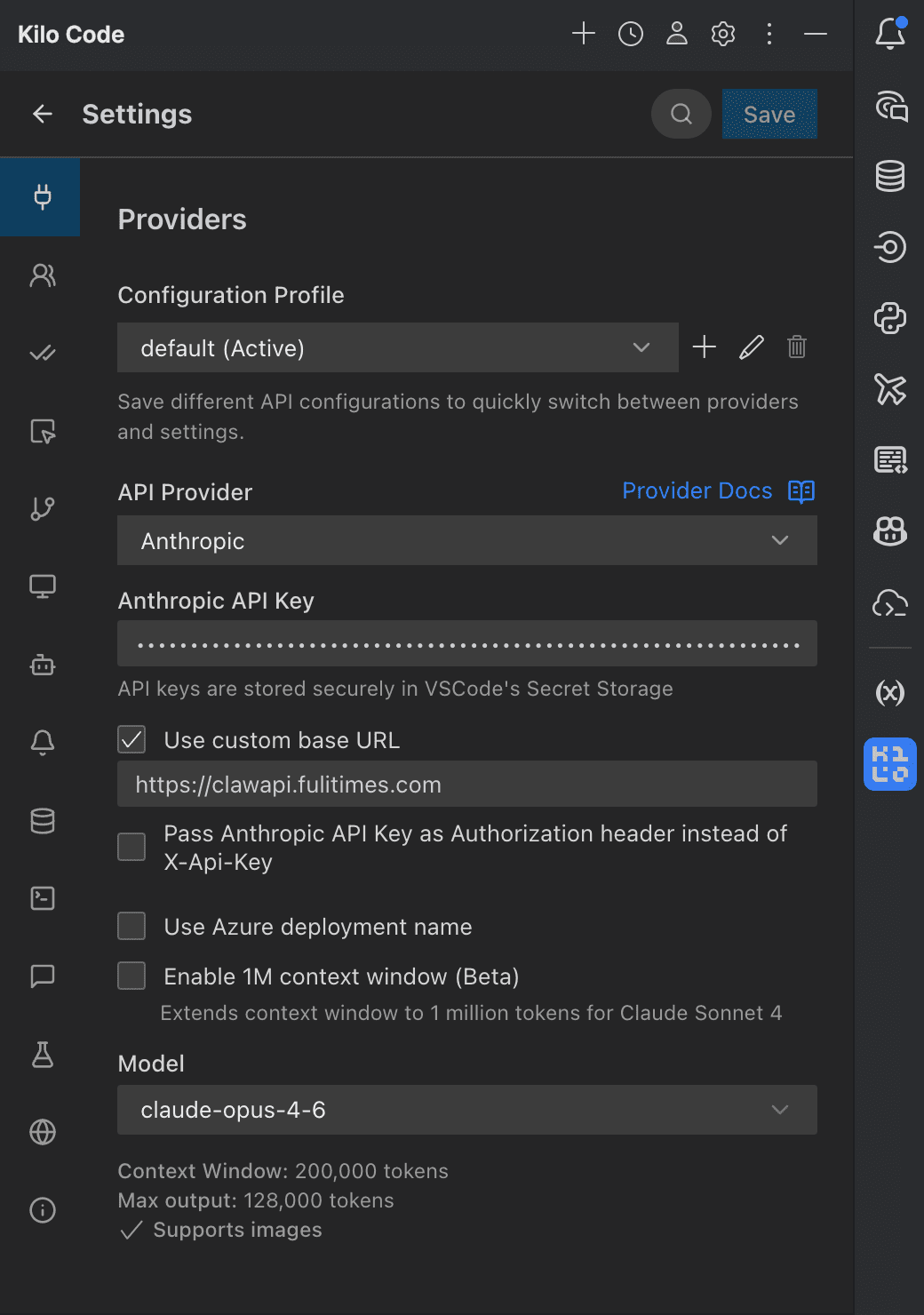
You must check Use custom base URL, otherwise the plugin will request the official Anthropic endpoint instead of the LMU AI relay.
Works for all OpenAI models, such as gpt-5.6-sol, gpt-5.6-terra, gpt-5.5, and gpt-5.4.
| Field | Value |
|---|---|
| API Provider | OpenAI Compatible (Responses) |
| Base URL | https://api.lmuai.com/v1 |
| API Key | the sk- key generated in the LMU AI console |
| Model | e.g. gpt-5.5 |
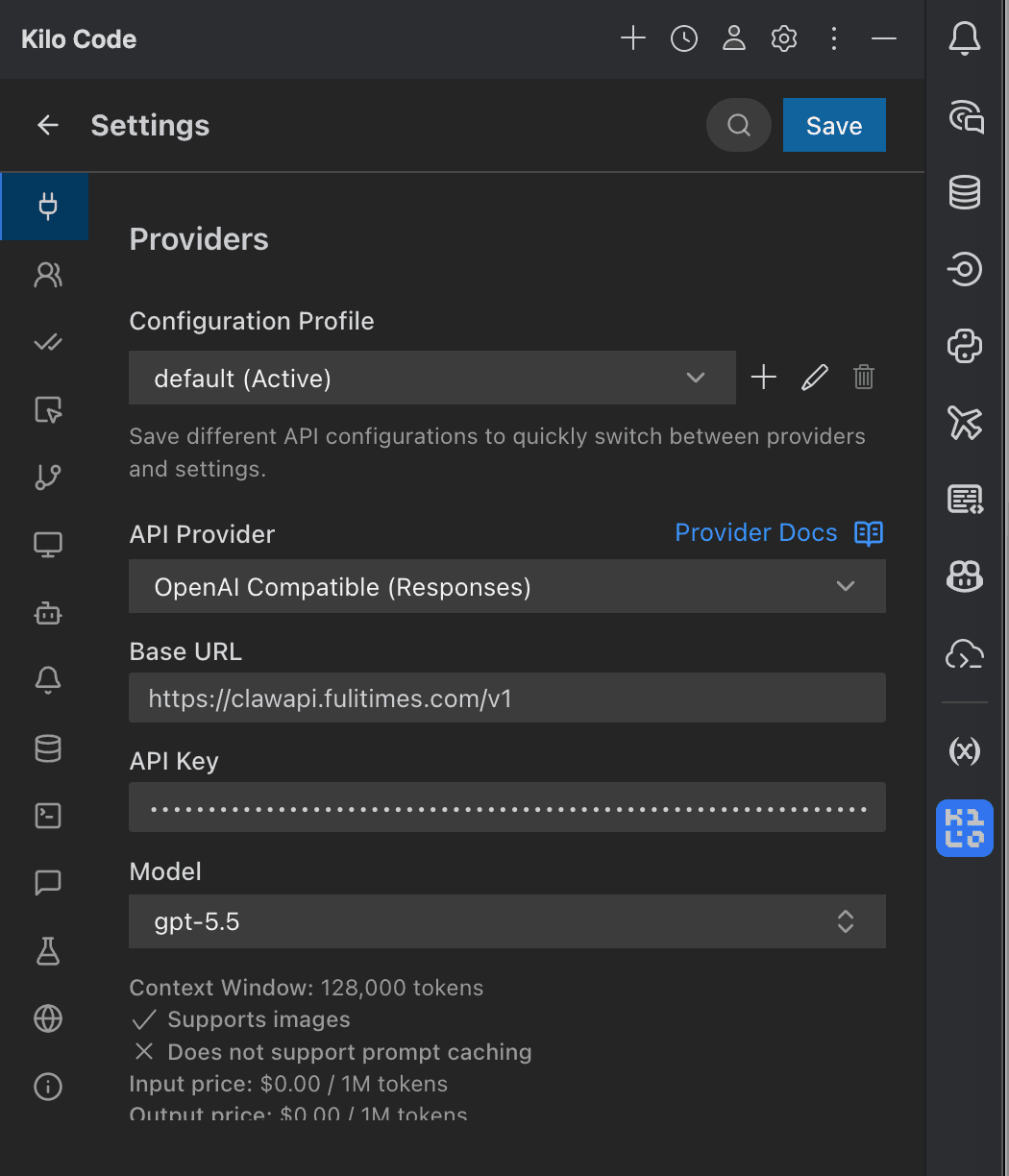
The Base URL for OpenAI models must end in /v1, unlike the Anthropic protocol (no /v1) — don't mix the two up.
Model name reference
Not sure which model to enter? Go to the Model Gallery to see every available model ID and copy it with one click.
Notes
- Using Claude / Chinese models → choose the
Anthropicprotocol, with Base URLhttps://api.lmuai.com(no/v1) - Using OpenAI models → choose the
OpenAI Compatible (Responses)protocol, with Base URLhttps://api.lmuai.com/v1(with/v1) - For the API Key, enter the
sk-key generated in the LMU AI console under either protocol - Once configured, click Save in the top-right corner to save the settings and start using it
Last updated:
Get an LMU AI key and start using Claude, Codex and more
Free sign-up, flexible plans, one key across Claude Code, Codex CLI, Cursor, VS Code, OpenCode, Cherry Studio and other AI tools.
Sign upWorkBuddy
Connect WorkBuddy to the LMU AI relay via a Custom OpenAI-compatible model — set the Base URL and sk- key to call Claude, GPT, and Chinese models.
Obsidian
Connect Obsidian to the LMU AI API — configure the Claudian and Copilot plugins to use Claude and Chinese large models in your notes with no proxy.