CC Switch one-click import
Use the CC Switch desktop tool to import your LMU AI API config into Claude Code in one click, skipping the manual settings.json edit.
CC Switch is an open-source, cross-platform desktop tool for managing and one-click-switching API provider configs across AI coding tools like Claude Code, Codex, OpenCode, and Gemini CLI.
Combined with the "Import to CCS" button in the LMU AI console, it connects Claude Code to the API in a single click, with no need to create or edit settings.json by hand.
Step 1 — Install CC Switch
Download the installer for your platform from the official repo's Releases page:
- GitHub Releases: https://github.com/farion1231/cc-switch/releases
Windows / macOS / Linux are supported. After installing, launch CC Switch at least once so the system registers its custom URL scheme.
After the first launch, keep CC Switch running (or let it stay in the background) so that clicking "Import to CCS" can invoke it correctly.
Step 2 — Create an API key in the LMU AI console
See Getting started - Create an API key:
- Open "API Keys" from the left menu
- Click "Create key" and give it any name
- Choose the group for the plan you have redeemed, and finish creating it
Step 3 — Import to CC Switch in one click
In the API key list, find the key you just created and click the "Import to CCS" button in the "Actions" column on the right of its row:
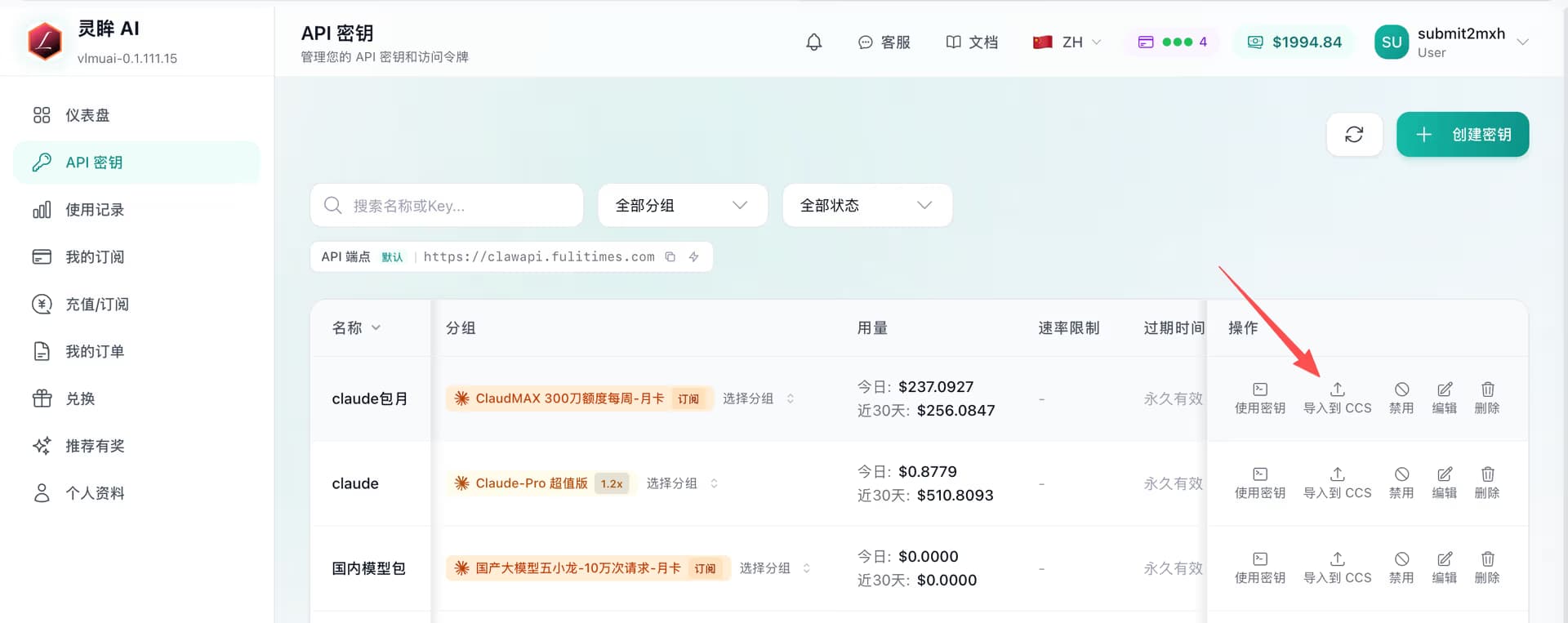
- The browser shows a prompt asking "Allow this site to open CC Switch?" — click "Allow / Open"
- CC Switch automatically detects and fills in the LMU AI
Base URLand your API key - Set that config as the active item in CC Switch
The first-time prompt
Different browsers (Chrome / Edge / Safari) word the confirmation slightly differently, but all ask whether to launch the external application CC Switch. Check "remember my choice" to avoid being asked again.
Step 4 — Make it take effect in Claude Code
CC Switch writes the selected config into Claude Code's settings.json (or injects env vars at launch), so:
- If Claude Code is already open, restart it once so the new config takes effect
- After that, just run
claude— no need to edit any config file by hand
Verify the Base URL is https://api.lmuai.com with the /status command.
Common issues
The "Import to CCS" button does nothing
Cause: the system has not registered CC Switch's URL scheme.
Fix:
- Confirm you fully installed CC Switch (not an unzipped portable build run directly)
- Launch CC Switch once, quit it completely, then click "Import to CCS" again
- If it still fails on Windows, look for a "register protocol / associate links" option in CC Switch settings
The browser blocked the protocol jump
Some browsers block unknown protocols by default. In the dialog, choose "always allow the docs / console domain to open links like this."
You want to add the config manually
CC Switch also supports adding a custom provider manually:
- Name: anything (e.g.
LMU AI) - Base URL:
https://api.lmuai.com - API Key: the
sk-key generated in the console
Save it and set it as the active item on the main screen.
Recommendations
- CC Switch can store keys for multiple groups / plans and switch with a click, which makes it better than editing
settings.jsonfor multi-plan users - In tray-resident mode it uses very little, so setting it to start at boot is recommended
- If you mainly use the command line and don't mind editing a config file, keep configuring by hand per the Claude Code guide — both have the same effect
Last updated:
Get an LMU AI key and start using Claude, Codex and more
Free sign-up, flexible plans, one key across Claude Code, Codex CLI, Cursor, VS Code, OpenCode, Cherry Studio and other AI tools.
Sign upCodex App image generation (api-image skill)
Install the community api-image skill in Codex App to restore image generation in API mode — zero extra config with LMU AI, just ask in plain language for text-to-image, image-to-image and inpainting.
OpenCode
Configure the LMU AI API in OpenCode as an OpenAI / Anthropic-compatible backend to use Claude, Codex, GLM, and other models.