Chatbox
Connect Chatbox on every platform (Windows / macOS / Linux / iOS / Android / Web) to the LMU AI API — dual-protocol, no proxy needed in China.
Chatbox is a multi-model AI chat client that covers every platform — Windows / macOS / Linux / iOS / Android / Web.
On mobile (iOS / Android)? Start here
Step-by-step setup for Chatbox mobile — including a configuration screenshot and the "Improve Network Compatibility" switch — is on its own page: Chatbox Mobile. The rest of this page applies to both desktop and mobile.
Download and install
- Official site: https://chatboxai.app
- Download and install the version for your platform — no account needed to use BYOK (bring your own key) mode
The two protocols
LMU AI supports two connection protocols; choose one based on the model type:
| Protocol | Models | API Host | API Path |
|---|---|---|---|
| Claude API (Anthropic Compatible) | Claude models, Chinese models (DeepSeek, Qwen, GLM, Kimi, etc.) | https://api.lmuai.com | Default is fine |
| OpenAI Responses API Compatible | OpenAI models (GPT-5.6 / GPT-5.5, etc.) | https://api.lmuai.com | /responses |
The API Host never includes /v1
Chatbox appends the path automatically when it makes a request, so always enter the API Host up to the domain only — do not include /v1. For example, the OpenAI Responses protocol ends up as https://api.lmuai.com/v1/responses.
Opening the add-provider entry point
Both protocols are configured from the same entry point:
Open Chatbox → Settings in the bottom-left → go to Model Provider → click Add at the bottom.
Open Chatbox → tap the menu icon ☰ in the top-left to open the sidebar → tap Settings → go to Model Provider → tap Add at the bottom.
Once you're on the configuration screen, the fields map one-to-one to the desktop version (on mobile they're labeled API Host and API Path); fill them in following Method 1 / Method 2 below.
Mobile has its own step-by-step guide
The mobile flow — with a configuration screenshot, the "Improve Network Compatibility" switch, and checking the assembled address — is written up as a standalone page: Chatbox Mobile.
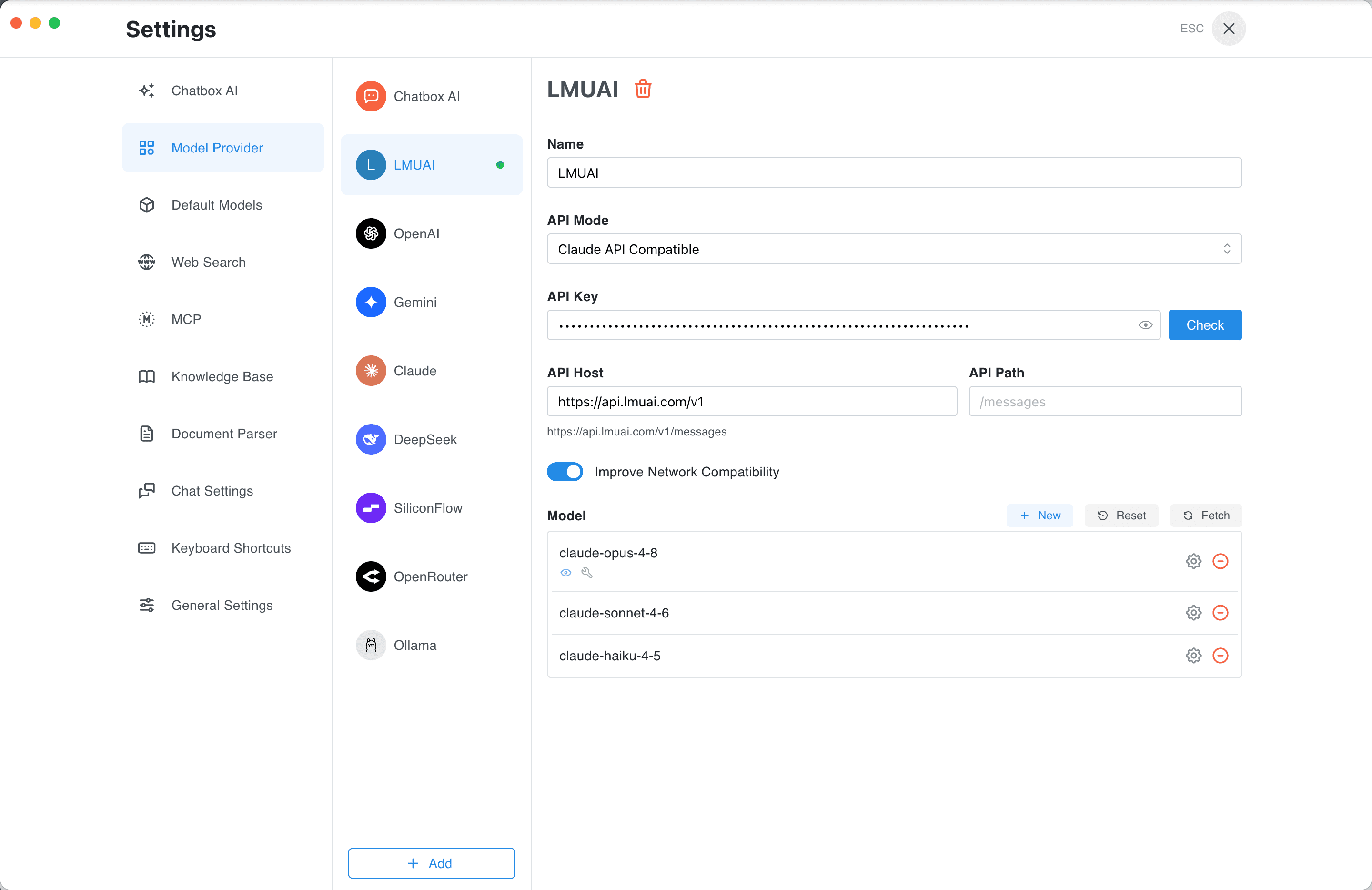
Method 1: Anthropic protocol (Claude and Chinese models)
Step 1 — Create a provider
After opening the new-provider window from the entry point above:
- API Mode: select
Claude API (Anthropic Compatible) - Name: anything you like (e.g.
LMU AI)
Step 2 — Enter the API details
-
API Host: enter the LMU AI API address (without
/v1)https://api.lmuai.com -
API Key: enter the
sk-key generated in the console
Step 3 — Add models
Chatbox's default list may not include the latest models, so you need to add them manually. On the provider settings page, find the Model section → click New / Add Model and enter the model ID, for example:
claude-opus-5claude-sonnet-5claude-haiku-4-5deepseek-v4-proqwen3.8-max-previewglm-5.2kimi-k3
For the full list of available models, see the Model Gallery.
Method 2: OpenAI protocol (GPT models)
Requirements
You need to meet one of these conditions:
- You have subscribed to a GPT plan
- You use pay-as-you-go billing and have selected the GPT group in the LMU AI console
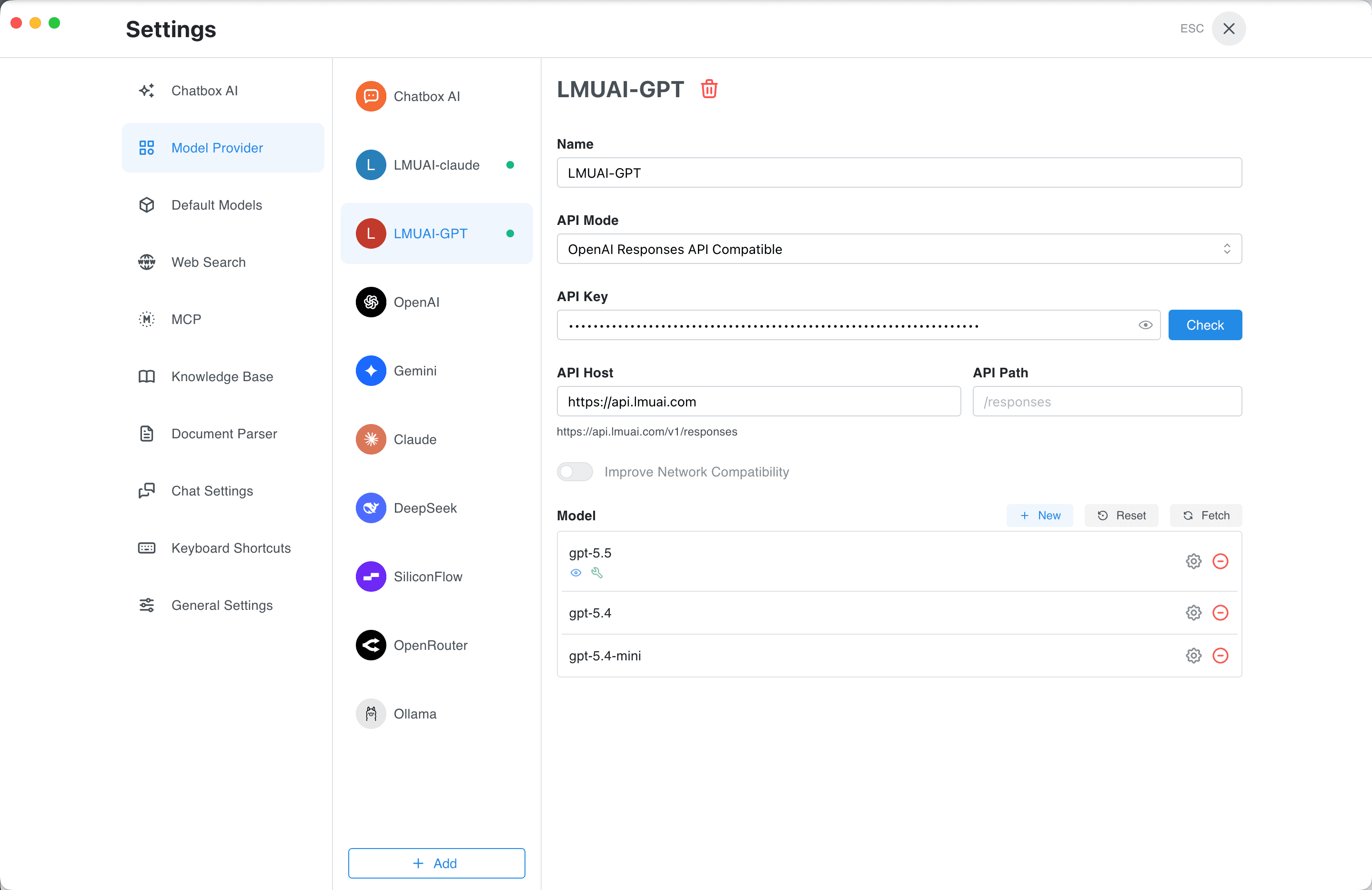
Step 1 — Create a provider
After opening the new-provider window from the entry point above:
- API Mode: select
OpenAI Responses API Compatible(notOpenAI API Compatible) - Name: anything you like (e.g.
LMUAI-GPT)
Step 2 — Enter the API details
| Field | Value |
|---|---|
| API Key | The sk- key generated in the console |
| API Host | https://api.lmuai.com |
| API Path | /responses |
Chatbox automatically joins the Host, /v1, and Path into the full request address https://api.lmuai.com/v1/responses, and the full assembled URL is shown live below the fields.
Once filled in as above, the screen looks like this:
Step 3 — Add models
In the Model section, click New and enter the model ID:
gpt-5.6-solgpt-5.6-terragpt-5.6-lunagpt-5.5gpt-5.4gpt-5.2
Usage
Back on the main screen, click the model selector at the top, switch to the provider and model you just added, and start chatting.
One key works with both protocols
The LMU AI API key supports both the Anthropic and OpenAI protocols. The API Host is https://api.lmuai.com for both — only the API Mode and API Path differ. If you want to use Claude / Chinese models as well as GPT, just add one provider for each as described above; you can use the same key for both.
Common issues
Does the API Host need /v1?
No. Always enter the Chatbox API Host field up to the domain only: https://api.lmuai.com.
Chatbox appends /v1 itself:
- Anthropic protocol: becomes
https://api.lmuai.com/v1/messages - OpenAI Responses protocol: set Path to
/responses, which becomeshttps://api.lmuai.com/v1/responses
If you add an extra /v1 in the Host, you get a broken 404 path like …/v1/v1/....
Why pick OpenAI Responses instead of the plain OpenAI API Compatible?
Chatbox's OpenAI API Compatible uses the older /chat/completions endpoint; LMU AI's OpenAI protocol uses the newer Responses API (/v1/responses), so you must pick OpenAI Responses API Compatible here and set API Path to /responses.
Chatbox's model list doesn't have Claude Opus 5 / GPT-5.6?
Chatbox's built-in preset model list updates with a delay, so new models need to be added manually via Add Model in the provider configuration — just enter the corresponding model ID. For available models, see the Model Gallery.
Changes don't take effect?
After saving, we recommend restarting the Chatbox client once, or reselecting the model in the chat screen.
401 / 403 errors?
Check in order:
- Is the API Key the
sk-key generated in the LMU AI console (not an official Anthropic / OpenAI key)? - Is the API Host wrong (both protocols use
https://api.lmuai.com, neither with/v1; for the OpenAI protocol, also check that API Mode isOpenAI Responses API Compatibleand API Path is/responses)? - Does your current plan / billing group include the model you're calling?
Last updated:
Get an LMU AI key and start using Claude, Codex and more
Free sign-up, flexible plans, one key across Claude Code, Codex CLI, Cursor, VS Code, OpenCode, Cherry Studio and other AI tools.
Sign upCherry Studio
Connect Cherry Studio to the LMU AI API and set up Claude, Chinese, and OpenAI model channels, with a direct connection on domestic networks.
Chatbox Mobile
Connect Chatbox mobile (iOS / Android) to LMU AI: open Model Provider from ☰ and set the API Host for both protocols — direct connection in China, no proxy.