Claude Code Desktop
Connect the Claude Code for Desktop client to the LMU AI API: enable Developer Mode, then configure the third-party inference endpoint.
Claude Code for Desktop is Anthropic's official desktop client. From the newer versions on, it supports a custom third-party inference endpoint, so you can connect it directly to the LMU AI API. There's no need to edit settings.json by hand — you do everything in the GUI.
Which one is right for me?
- Want to use it in the terminal → Claude Code CLI
- Want to use it inside VS Code → VS Code extension
- Want a standalone desktop app → this page
All three use the same LMU AI API Key — pick whichever suits you.
The desktop app needs a network that can reach the outside internet
Unlike the CLI, the Claude Code desktop client itself needs working access to overseas networks: the download page and the client's login, activation, and version-check flows all connect directly to Anthropic's official servers.
So even after you point the Base URL at LMU AI, you still need to turn on a network proxy that can reach the outside internet (commonly known as a VPN / circumvention tool), or it will get stuck at the download or startup stage. Once LMU AI is configured, the model conversations themselves go through LMU AI nodes, but the client's basic networking still depends on the outside-internet proxy.
Step 1 — Download the latest version
You must use the latest version. Older desktop clients don't support a custom third-party endpoint (i.e., they have no Configure Third-Party Inference option).
Go to the Claude download page, download and install the client for your platform, then launch the app once it's installed.
The download page is hosted overseas, so you must turn on an outside-internet proxy (VPN) first to open it and download the installer.
Step 2 — Enable Developer Mode
The entry point for third-party endpoint configuration is hidden by default, so you need to turn on Developer Mode first.
- In the top menu bar, click Help
- Select Troubleshooting
- Click Enable Developer Mode
Once enabled, a new Developer menu appears in the top menu bar.
Step 3 — Configure the LMU AI API
- Click Developer in the top menu bar
- Select
Configure Third-Party Inference … - In the configuration panel that opens (Connection → Gateway), fill in:
| Field | Value |
|---|---|
| Credential kind | Static API key |
| Gateway base URL | https://api.lmuai.com |
| Gateway API key | The sk- key generated in the LMU AI console |
| Gateway auth scheme | bearer |
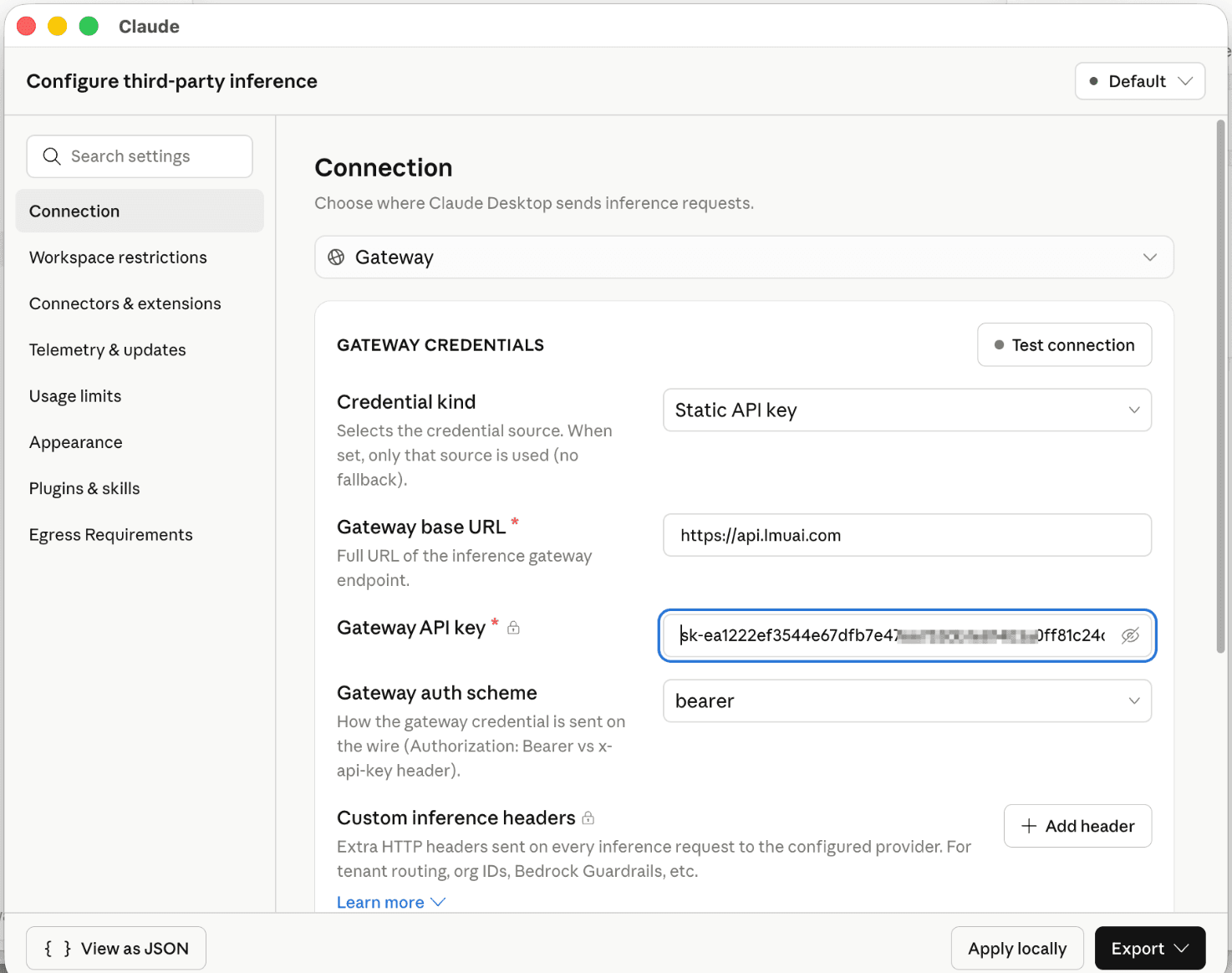
- Click
Apply locallyin the bottom-right to save, then restart the client for it to take effect
Set the Base URL to https://api.lmuai.com (without the /v1 suffix); both the desktop app and the CLI use the Anthropic protocol.
Before the configuration panel appears, the client has to complete online login/activation first, and this step requires an outside-internet proxy (VPN). We recommend keeping the proxy available throughout the whole process of opening the client and configuring it.
Verify the config
Open any conversation and send Claude a message; if it replies normally, the config is working. To confirm the request actually went through LMU AI:
- The API Keys → Usage stats page in the LMU AI console records the request in real time
- The status indicator in the bottom-right of the client usually shows the current model
Switch models / use Chinese models
To use a Chinese model (Qwen, DeepSeek, GLM, Kimi, etc.), enter the corresponding model ID in the Model field of Configure Third-Party Inference, for example:
qwen3.8-max-previewdeepseek-v4-proglm-5.2kimi-k3
For the full list of available models, see the Model Gallery, where you can copy any ID in one click.
Common issues
The Configure Third-Party Inference option is missing
Your desktop version is too old — download the latest version from the official site and reinstall. This option was only added in newer versions.
The Developer menu doesn't appear
Confirm that Help → Troubleshooting → Enable Developer Mode is checked; if it still doesn't appear, fully close and restart the client (on Mac, right-click the Dock icon and choose Quit — not just closing the window).
401 / Unauthorized error
- Check that the API Key was copied in full (starts with
sk-) - Confirm the Base URL is
https://api.lmuai.com, without/v1 - In the LMU AI console, confirm the group the key belongs to has available quota
Stuck on the download / login / startup screen
Downloading the desktop client and its basic networking (login, activation, version checks) all require a direct connection to overseas servers. Confirm that your outside-internet proxy (VPN) is on and working, then reopen the client. This limitation is unrelated to whether the LMU AI Base URL is configured.
Switching back to the official Anthropic endpoint
In Developer → Configure Third-Party Inference, clear the config or select the default to switch back.
Last updated:
Get an LMU AI key and start using Claude, Codex and more
Free sign-up, flexible plans, one key across Claude Code, Codex CLI, Cursor, VS Code, OpenCode, Cherry Studio and other AI tools.
Sign upClaude Code CLI
Connect the Claude Code CLI to the LMU AI API: settings.json config, model selection, Chinese LLMs, enabling the 1M context, and common error fixes.
Claude Code extension (VS Code / Cursor / Trae / Antigravity)
Download VS Code, install the Claude Code extension, and connect it to the LMU AI API — a full walkthrough that shares one settings.json with the CLI.