Configure Trae with a third-party API
Configure a third-party API in Trae (LMU AI relay) — no plugin; in Settings → Models → Add Model, choose Anthropic and enter the request URL and sk- key.
The Trae editor natively supports connecting to a third-party API (the Anthropic-compatible protocol), with no plugin to install and no config file to write — the simplest way to connect a third-party API of any editor. It supports both official Claude models and Chinese large models (GLM, Qwen, DeepSeek, Kimi, etc.).
Native method vs the Codex plugin — which to choose?
- Want Claude / Chinese models → the native method on this page (Anthropic protocol, a few clicks in the GUI)
- Want the GPT-5 / Codex series → see the official Codex plugin (OpenAI protocol, hand-written config file)
The two approaches can coexist — if you want to use both kinds of model, just set up both.
Configuration steps
- Open Trae and go to Settings → Models → Add Model
- Set Provider to Anthropic
- Set Model to Custom Model (at the bottom of the dropdown), then enter the model name in the Model ID box below (see the common-models table below)
- Set the Custom request URL to:
https://api.lmuai.com/v1/messages - Set the API key to the key you generated in the LMU AI console (starts with
sk-) - Click Confirm to save, then switch to that model to start using it
Example: configuring a Chinese model (GLM-5.1)
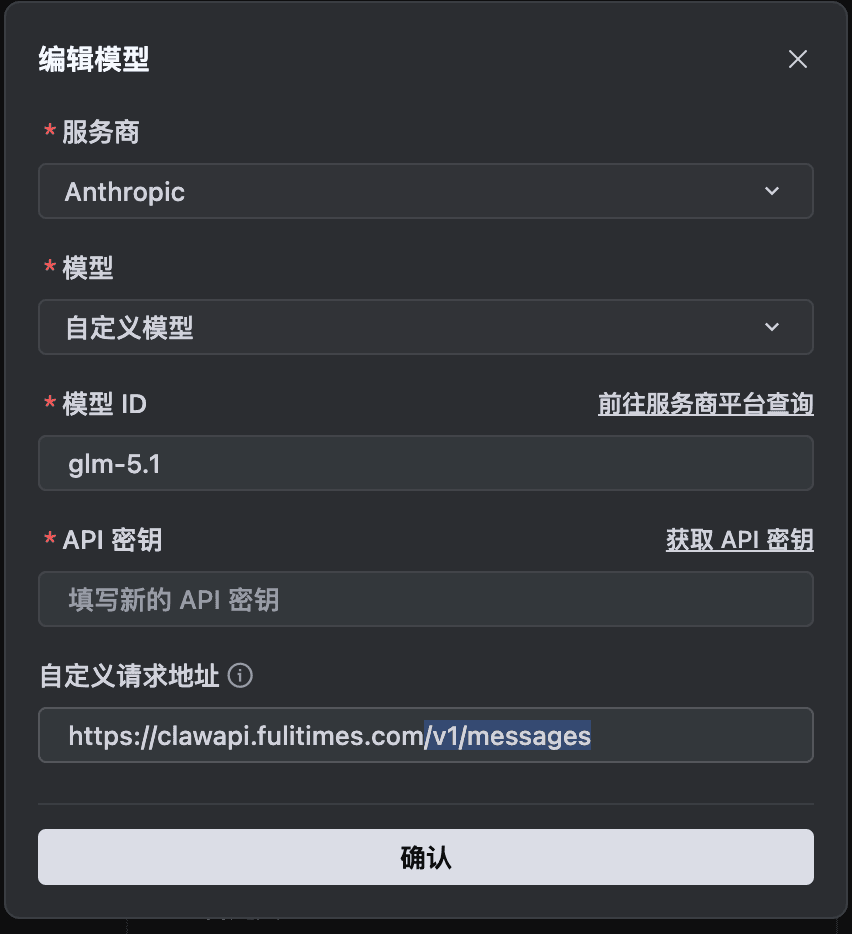
The screenshot below uses GLM-5.1 as an example of how to fill in a custom model. Note that you must pick Custom Model in the Model dropdown and then type the model ID manually; the request URL is always https://api.lmuai.com/v1/messages:
Common models reference
Official Claude models
| Model ID | Description |
|---|---|
claude-opus-5 | Claude Opus 5 (flagship, recommended) |
claude-sonnet-5 | Claude Sonnet 5 (balanced) |
claude-haiku-4-5 | Claude Haiku 4.5 (high-speed) |
claude-opus-4-8 | Claude Opus 4.8 (previous generation) |
claude-opus-4-7 | Claude Opus 4.7 (previous generation) |
claude-sonnet-4-6 | Claude Sonnet 4.6 (previous generation) |
Chinese large models (pick Custom Model and type the ID manually)
| Model ID | Description |
|---|---|
glm-5.2 | Zhipu GLM-5.2 |
qwen3.8-max-preview | Qwen 3.8 Max Preview |
deepseek-v4-pro | DeepSeek V4 Pro |
kimi-k3 | Kimi K3 |
glm-5.1 | Zhipu GLM-5.1 (previous generation) |
qwen3.7-max | Qwen 3.7 Max |
kimi-k2.6 | Kimi K2.6 (previous generation) |
The models actually available are determined by the Available Models list in the LMU AI console; for the full list, see the Model Gallery.
Common issues
Native method or the Codex plugin?
- Native method (this page): uses the Anthropic protocol and takes just a few clicks in the GUI — best for users who want models like Claude / GLM / Qwen
- Codex plugin method: uses the OpenAI protocol and requires a hand-written config file — best for users who want the GPT / Codex series
The two approaches can coexist — if you want to use both kinds of model, just set up both.
Why does the request URL need to end in /v1/messages?
Trae's Custom request URL requires the full endpoint (unlike tools such as Chatbox, which append the path automatically). The Anthropic protocol's chat endpoint is always /v1/messages, so the full URL is https://api.lmuai.com/v1/messages.
Where do I find model IDs?
See the full list of available models in the Model Gallery. Click any card to copy its model ID and paste it directly into Trae's Model ID box.
No response or an error after adding?
- Is the provider set to Anthropic (not OpenAI)?
- Did you pick Custom Model in the model dropdown and then type the model ID manually?
- Does the request URL end in
/v1/messages? - Is the API key the
sk-key generated in the LMU AI console?
Save and restart the Trae client once.
Last updated:
Get an LMU AI key and start using Claude, Codex and more
Free sign-up, flexible plans, one key across Claude Code, Codex CLI, Cursor, VS Code, OpenCode, Cherry Studio and other AI tools.
Sign upConfigure Cursor with a third-party API
Configure a third-party API in Cursor — turn on Override OpenAI Base URL, enter your sk- key, and use Claude, GPT, and more in the Chat panel.
WorkBuddy
Connect WorkBuddy to the LMU AI relay via a Custom OpenAI-compatible model — set the Base URL and sk- key to call Claude, GPT, and Chinese models.