Chatbox Mobile
Connect Chatbox mobile (iOS / Android) to LMU AI: open Model Provider from ☰ and set the API Host for both protocols — direct connection in China, no proxy.
Chatbox mobile (iOS / Android) shares the same configuration logic as the desktop version — only the entry point and field names differ slightly. This guide walks through it screen by screen for mobile; for desktop, see Chatbox — all platforms.
Almost the same as desktop
- Different entry point: on mobile you open Settings from the ☰ menu in the top-left; on desktop it's Settings in the bottom-left.
- Same fields: on mobile they're labeled API Host and API Path, matching the desktop version exactly — just follow the steps below.
Download and install
- Official site: https://chatboxai.app
- Install from the App Store (iOS) or the app store / official APK (Android) — no account needed to use bring-your-own-key (BYOK) mode.
Opening the configuration entry point
Open Chatbox → tap the menu icon ☰ in the top-left to open the sidebar → tap Settings → go to Model Provider → tap Add at the bottom.
Once you're on the configuration screen, fill it in following Method 1 / Method 2 below.
The two protocols
LMU AI supports two connection protocols; choose one based on the model type:
| Protocol | Models | API Host | API Path |
|---|---|---|---|
| Claude API (Anthropic Compatible) | Claude models, Chinese models (DeepSeek, Qwen, GLM, Kimi, etc.) | https://api.lmuai.com | Default is fine |
| OpenAI Responses API Compatible | OpenAI models (GPT-5.6 / GPT-5.5, etc.) | https://api.lmuai.com | /responses |
The API Host never includes /v1
Chatbox appends the path automatically, so always enter the API Host up to the domain only — do not include /v1. After you fill it in, the full assembled address is shown live below the fields — for example, the OpenAI Responses protocol becomes https://api.lmuai.com/v1/responses. If the domain isn't api.lmuai.com, the API Host is wrong.
Method 1: Anthropic protocol (Claude and Chinese models)
-
API Mode: select
Claude API (Anthropic Compatible) -
Name: anything you like (e.g.
LMU AI) -
API Host: enter
https://api.lmuai.com(without/v1) -
API Key: enter the
sk-key generated in the console -
Add models: the mobile preset list may not include the latest models, so in the Model section tap New / Add Model and enter the model ID, for example:
claude-opus-5claude-sonnet-5claude-haiku-4-5deepseek-v4-proqwen3.8-max-previewglm-5.2kimi-k3
For the full list of available models, see the Model Gallery.
Method 2: OpenAI protocol (GPT models)
Requirements
You need to meet one of these conditions:
- You have subscribed to a GPT plan
- You use pay-as-you-go billing and have selected the GPT group in the LMU AI console
- API Mode: select
OpenAI Responses API Compatible(notOpenAI API Compatible) - Name: anything you like (e.g.
LMUAI-GPT) - API Host: enter
https://api.lmuai.com - API Path: enter
/responses - API Key: enter the
sk-key generated in the console - Add models: in the Model section tap New and enter the model ID, e.g.
gpt-5.6-sol,gpt-5.6-terra,gpt-5.5,gpt-5.4.
Chatbox joins the API Host, /v1, and API Path into the full address https://api.lmuai.com/v1/responses, shown live below the fields.
A worked example and mobile-specific details
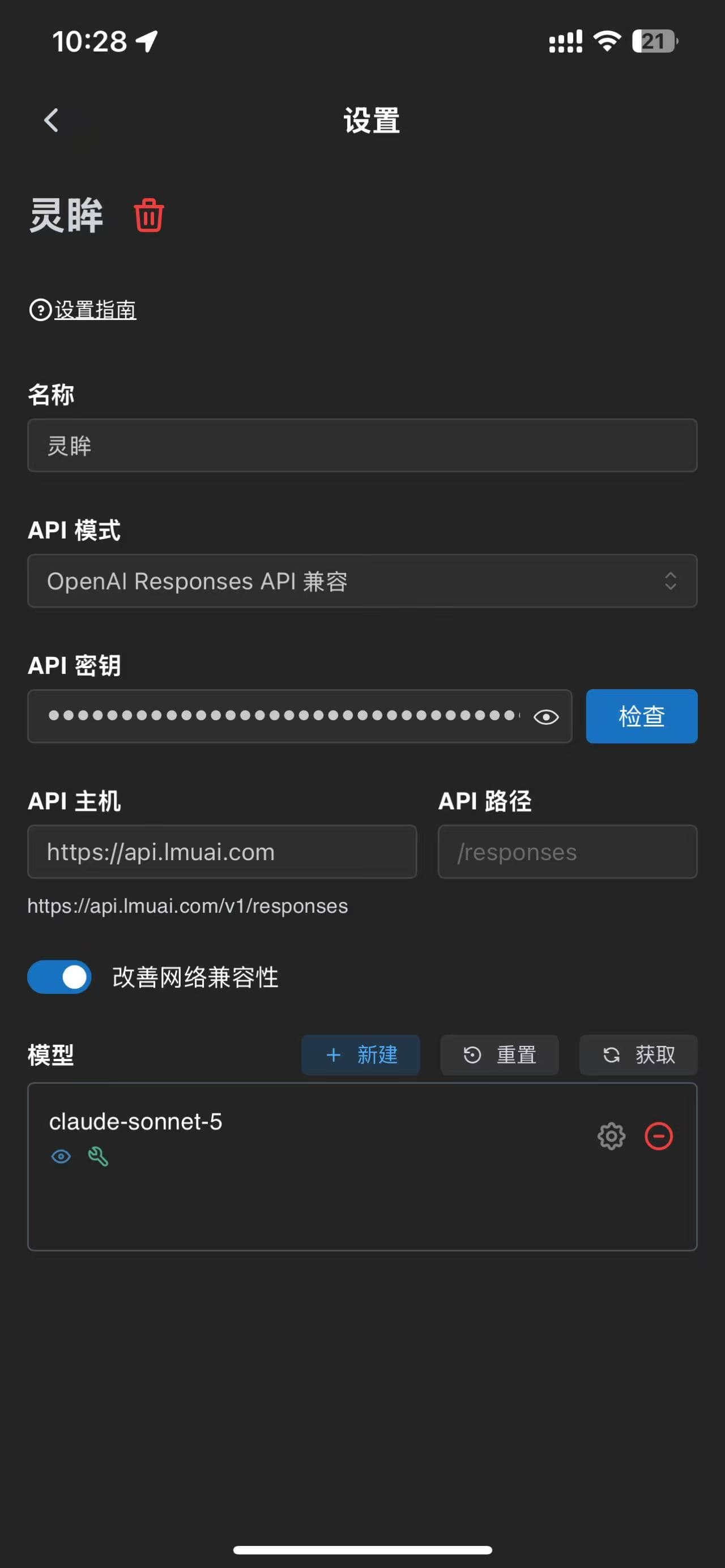
Below is a completed mobile configuration screen (OpenAI Responses protocol; the full address https://api.lmuai.com/v1/responses is already assembled below the fields):
Two details for mobile
- "Improve Network Compatibility": turn on this switch near the bottom of the screen; it reduces connection problems on mobile networks.
- Check the full address assembled below the fields: once filled in, Chatbox shows the final request URL live (in the screenshot above it yields
https://api.lmuai.com/v1/responses). If the domain isn'tapi.lmuai.com, the API Host is wrong.
Troubleshooting
- Changes don't take effect: after saving, restart Chatbox once or reselect the model in the chat screen; on mobile you sometimes also need to restart after switching between Wi-Fi and cellular.
- 401 / 403 errors: check in order whether the API Key is the
sk-key from the LMU AI console, whether the API Host is correct (without/v1), whether the OpenAI protocol's API Mode and API Path are right, and whether your current plan / billing group includes the model you're calling. - For more on the protocols, model IDs, and common issues, see the shared desktop-and-mobile Chatbox — all platforms page.
Last updated:
Get an LMU AI key and start using Claude, Codex and more
Free sign-up, flexible plans, one key across Claude Code, Codex CLI, Cursor, VS Code, OpenCode, Cherry Studio and other AI tools.
Sign upChatbox
Connect Chatbox on every platform (Windows / macOS / Linux / iOS / Android / Web) to the LMU AI API — dual-protocol, no proxy needed in China.
Hermes Agent
Connect Hermes Agent to LMU AI — edit ~/.hermes/config.yaml with a base_url that includes /v1 and your sk- key to switch to any available model.